
How to Add and Configure a CAN Sensor
To add a CAN sensor, you need to click on the Add button in the Sensors section, then in the sensor type field you need to select CAN sensor type. If you wish, you can select the number of the sensor and its name, otherwise the name will be set automatically.
Next you need to select CAN sensor subtype: More details about CAN sensor subtypes and their functions in the table below:
For each of the selected subtypes, you can also configure the event that will trigger the sensor, see the table below for more information about configuring events:
For each of the selected subtypes you also configure the event that will trigger the sensor more about event configuration in the table below:
Event generation by range entry
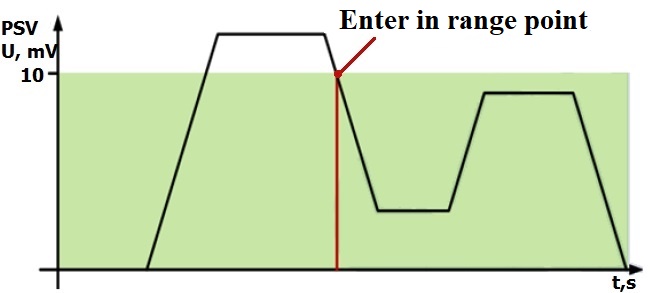
Generating an event on leaving the range
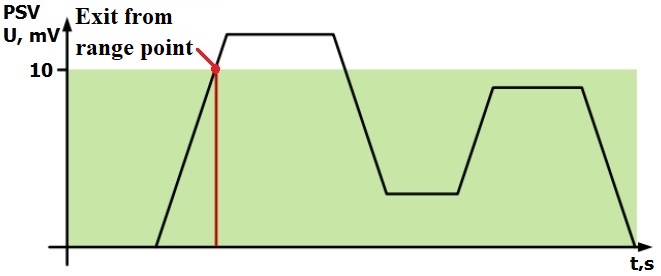
Range entry/exit event generation
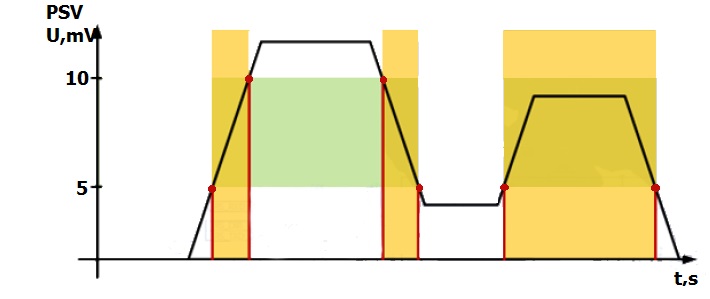
Once you have successfully configured the way the event is generated, you need to start selecting the content type, more details about the content types in the table below: